Showing posts with label Mac. Show all posts

Wednesday, November 07, 2007

Upgraded


A few weeks ago, my brother-in-law asked me if I wanted to purchase into a family pack for Mac OS 10.5 (aka Leopard). Family packs cost a little less than twice as much as two standard versions of an OS but offer you 5 licenses. I hadn't really considered upgrading before this as I wasn't sure if my Mini would run it adequately, and, being a lapsed Mac fanatic, I wasn't exactly itching to taste the newest OS. I had also been reading some reviews on MacWorld and, while positive, they weren't raving about it.

The lack of over-the-top talk on MacWorld is actually a good thing and a direct reflection of the fact that the Mac as a platform is much stronger than it was about a decade ago. When times were lean, MacWorld was more inclined to slant all articles about Apple hardware and software in the most positive fashion. Now, they can be a bit more even-handed because the platform to which they tether their continued existence looks secure and they no longer need to relentlessly convince everyone that the Mac is superior in every regard.

Despite the fact that I knew it wasn't going to be an awe-inspiring upgrade, I decided to take the reduced-rate plunge, though not without reservations and taking precautions. Since some of my previous OS X upgrades have resulted in some disastrous losses, I decided to clone my hard drive using Carbon Copy Cloner. This creates a disk image of whatever drive you tell it to copy. For my 100 GB drive with about 38 GB of occupied space, this took about 3 hours to create a "read-only" (non-compressed) image. It took another hour for me to copy this image over to a networked back-up hard drive due to the shortcomings of my LAN set-up. If Leopard really didn't run well or hosed my computer, it was my hope that I'd be able to completely restore the previous version of my OS from this image.

My Mini's internal DVD drive was rather sensitive to the installation disc and, in fact, spit it out in disgust a few times so I decided to try to install it off of an external double layer burner that was attached via Firewire. In the past, I couldn't persuade my Mac to let me install from an external drive so I was pleasantly surprised that permission was granted this time. The disc read slower than molasses in January but it went smoothly enough. Installation took about an hour and a half.

Most tech folks recommend a clean install rather than an upgrade but I couldn't be bothered to go to that trouble so the first test was going to be whether or not the contents of my drive remained intact after the installation. I'm pleased to say that, aside from my printer driver which disappeared (though I did successfully reinstall it), everything seems to be there. Well, OS 9 vanished but I expected that since Apple decided to no longer support its former OS. If I need to run anything in OS 9 in order to access legacy files, I'll run it on my old orange iBook.

The new dock. Click to see a bigger version.

My first visual impression of OS 10.5 is that everything was smaller and fuzzier. The dock was refashioned to give the appearance of icons sitting on a reflecting glass surface in a faux 3D fashion. The indication that an application is open is far more subtle now. It used to have a black triangle under an open application. Now, there's a reflective little blue droplet. This is the sort of visual tweaking that Apple excels at and why their OS always looks more stunning and beautiful than others though it doesn't do anything extra for functionality.

My next test was to see if anything that used to work stopped working or ran badly. I haven't tried everything but all the commonly-used applications (Photoshop, InDesign, Filemaker Pro, Toast, Mail, Skype, Adium, Excel, Word, iCal, and Diablo II: Lord of Destruction) were fine though launch times seemed a bit slower. Oddly enough, some of these applications, once launched, actually seem to run a little faster, particularly Diablo II. However, I can't say the programs have been put through their paces as I just did a quick launch, type a bit, click around a bit and quit test. The only exception to applications running faster or at the same speed has been Firefox which was rather noticeably kludgy until I updated it.

Running multiple applications has gotten slower when I have more than 3 running (or one of them is a memory pig) but this isn't too shocking since, with 1 GB of RAM, my Mini isn't exactly overloaded with free memory nor is it a speed demon at 1.42 Ghz. However, it is decently over the minimum requirement of 512 MB of RAM and 867 Mhz (G4 or Intel processor) for Leopard. I think Leopard is the last meaningful upgrade I can install on this particular machine unless I want to appreciably sacrifice performance on the altar of Apple's ever-demanding eye candy.

The visual differences which I have found unappealing include the miniaturization of certain Finder elements. The names and icons on the side bar are much smaller than before (see the screen shot a few paragraphs down to see to what I'm referring). This is very likely a means of accommodating more items in the list such as the "search for" portion at the bottom. Also, the blurry font smoothing in its default setting just about drove me crazy and I had to change it to "standard" (which I believe means it is actually "off" but Apple didn't make that clear by their wording in the System Preferences panel as there is no "off" option). Keeping smoothing on made the font in my blog look about 3-feet thick and made me wonder how others see my site's lettering with font-smoothing on.

The big gun in Leopard is the backup utility named "Time Machine". Unfortunately, my hard disk is not partitioned and I don't have an external drive directly connected to my Mac so I can't use it. I do have a networked hard drive which is currently tethered to my PC via USB 2 but that drive is not recognized by Time Machine and I cannot use it for backing up unless I do so by dragging things to the drive myself (the Mac does recognize the drive, only Time Machine does not). For the moment, I can't really take advantage of the most impressive feature so I'll have to continue to do manual backups until I'm willing to fork over some money for a dedicated external drive for the Mac, move my external drive to the Mac (not bloody likely), or partition the hard drive (also unlikely). I'm not going to go through one type of trouble (changing my existing back-up set-up) to avoid another (manual backing up), particularly when I can't be sure the two PCs that also currently access my external drive will recognize it if it's hard-wired to the Mac.

The nifty-looking but relatively pointless (for me) "cover flow" view option.

I can see the benefit of some of the visual aspects for select users even if they aren't doing much for me. There are probably some people out there who think the "cover flow" view option is better than other views, for instance. If you have a ton of pictures and want to be be able to rotate through them rapidly to see them rather than look at thumbnails, it probably has a higher utility factor than using Apple's "Preview" to open them all up and scroll through a list of thumbnails. Personally, I think using Preview is better as it opens the thumbnail you select at a large size in the main preview window.

By clicking a folder in the dock (red box in t he screen shot), you get a pop up of all the contents of that folder as part of the "stacks" feature.

By far, my favorite thing in Leopard is the "Stacks" feature in grid view. The "fan" view just looks stupid but the grid allows you to see the contents of all folders within a folder that is stored in Dock with a click. This means you don't have to store as many frequently-accessed folders in the Dock (which shrinks the icons to ever tinier sizes as you cram it full of more of them) or tunnel through nested folders.

There are a lot of cool-looking things in Leopard and I can't say I regret the upgrade at this point in time. However, I also cannot say it's a must-have upgrade for any particular user of Mac OS X unless there is a compatibility issue at play. In the end, the biggest reason to upgrade generally ends up being the fact that software developers will write to the newest version of an OS and running older versions increases your chances of having problems if you don't upgrade. However, that does not yet appear to be the case with Leopard but only time will tell.

Friday, February 16, 2007

Replacing the Mac Mini's Hard Drive

The box Other World Computing sent my new drive in. The sticker that says you should reject the parcel if the seal is broken is interesting.

In a previous post, I mentioned that my Mac Mini's internal hard disk had failed. Rather than pay for repair, I opted to do it myself. I've done these types of repairs in the past on other Macs though they were all bigger than the Mini. In the past, I've replaced the hard disk on a PowerPC 6300 and the CD-ROM drive on an orange gumdrop-shaped iMac. Neither one really taxed my prowess but I do have a great knack for breaking off plastic tabs on the cases any time I open up a computer for upgrade or repair.

The drive I purchased was $89. It was somewhat more expensive than a precise duplicate of my former drive (a 4500 rpm, 80 GB Toshiba made for Apple). It's slightly faster at 5400 rpm and somewhat bigger at 100 GB. The folks at Other World Computing are absolute peaches and I'd highly recommend them if you're in need of upgrades or replacement parts. I e-mailed them to verify the compatibility of the drive I wanted to order and their response was fast and friendly. I ordered very late Tuesday night. The drive arrived around 5:30 on Friday via Fed Ex. Shipping was a reasonable $26.


The hard disk was very well-packed and arrived safely.


The drive itself is safely tucked into an anti-static packet. It rather looks like dinner for astronauts. You know, the type where they rip off the end and suck out the contents in the gravity-less environment?

Getting the case open was supposed to be the hard part. It was actually quite easy and I didn't even break any of the tabs. I was lulled into a false sense of security.

Anyway, OWC includes a section on their web site which has instructional videos for performing a wide variety of tasks including installing a hard drive and RAM on a mini. If you watch the video, you can pretty much see exactly what I did.

My installation went almost precisely like the one you see there except for the part where the competent fellow performing the tasks smoothly removes the screws and moves on to the next task. In my case, you can add about 5-10 minutes of extreme frustration for each screw as I attempted to remove screws held in by the approximate gravitational force of a collapsed star. The gentlemen narrating the instructional video mentions that he had already taken that particular Mini apart before. I'm pretty sure that was because the instructional video would have taken an hour if he'd have had to take the screws out before they were pre-loosened.

This also might explain why Apple's tech people have to charge so much. They probably are sitting in the back somewhere swearing and attempting to get enough torque on their screwdrivers to remove the screws necessary to repair the computers they work with. I'm guessing they also probably need several days off to regrow the skin on the tips of their fingers and get workmen's compensation during the healing process. I'm guessing they also have to pay for wholesale replacements when they've totally stripped the head off of most of the screws and have to rip the plastic frame apart to get at the innards of the computer.

Once I finally got the screws out and the drive in, I then had the chance to fight with getting the screws on the fan back in. All the itty-bitty other incredibly short screws just refused to go into their crevices and fell into the guts of the computer instead. The fan screws simply refused to go back in at all. With what little skin I had left, I pushed them in as far as possible and gave up. It took an hour and a half to do and at least an hour and 15 minutes of that was dealing with the screws. I do not exaggerate.

The moment of truth was at hand. I booted up the Mini and loaded the disk utility to erase the drive and it was there for erasing. Hurrah! I did it right and didn't hose my computer. I formatted the disk and prepared to install OS X.


Then, I hit an impasse. See the big red circles with exclamation points in the screenshot above? Those are OS X telling me I can't install the OS on my new hard drive or boot from it. Does it tell me why? No, of course not! What fun would that be!

So, I feel my blood pressure climb and go back to the disk utility and format the drive again. It won't work. I format it using every option available (except UNIX) including MS-DOS format. I partition it a few times in case 100 GB is too big for some reason. I search the internet for advice and find no joy. I erase again and again. Still no happiness.

Finally, I decide to restart. When I restart, the drive has magically become a bootable installable option. At the risk of further angrying up the blood of the Mac faithful out there, I have to sarcastically thank Apple for not telling me that it may be necessary to restart after formatting in order to make the drive bootable.

God, I miss OS 9.

Tuesday, February 13, 2007

The High Price of Apple's Genius Help

I posted previously that my 2-year-old, lightly-used Mac Mini seemed to have a dead hard drive. In comments, my brother-in-law suggested I "take advantage of the customer support Apple is known for." I packed up an ailing iBook and my Mini and my husband took them to the Shibuya Apple store for a consultation.

The iBook is an old dual USB 500 mhz G3. Some of the keys on the keyboard don't work and the fragile delete key fell off (though I still have the key, it just needs to be reattached). Also, there seems to be a slightly faulty connection with the display. The screen dims and you have to squeeze the area in front of the left side of the keyboard to get it to return to full brightness. Since the keyboard only has issues with random keys (1, 5, 9, Q, return, etc.) and not an overall problem, it seems like the whole thing isn't dead and the display issue is clearly a loose connection problem if a squeeze can fix it.

The geniuses told us that it'll cost 20,000 yen (about $190) to fix the keyboard and 45,000 yen to fix both the keyboard and the display issue. Considering better iBooks than mine are going for about $150-$200 on eBay, I passed on this offer.

The ultra clever geniuses wouldn't guarantee that my problem with my Mac Mini was a failed hard drive but they offered to fix it for 40,000 yen (about $380). Considering a new Mini which is far better than mine would be $600, I passed on this as well.

I'm utterly disgusted by the inflated costs of these repairs. I know for a fact that I wouldn't pay this much if I went outside of Apple's repair service for a fix. I also know that I can buy a replacement hard drive of the exact same make and size as the one currently in my Mini (and from the same manufacturer) from Other World Computing for $100 (including shipping) and put it in the Mini myself in about a half hour. I don't know where Apple buys their drives nor how much the geniuses make but they'd have to make $400 an hour and pay twice as much as the going rate to justify a 40,000 yen price tag for the hard drive fix.

Apple either overcharges on an extended warranty (3 years instead of the miserly 90 days of the initial warranty) or gouges sufficiently on repairs that you will consider buying a new computer rather than keeping your old one. Either way, the customer is going to lose out by forking over $170-$350 on the extended warranty up front, by paying exorbitant repair fees, or tossing their old machine out the window in favor of a new one.

This trip brought home that what Apple is known for is higher prices than others offering similar services and products. I'm beginning to feel increasingly that there aren't enough options out their for computer purchases as I'm fed up with Apple and I don't want to use Vista.

Monday, February 12, 2007

Mini Frustration


My two-year-old Mac Mini appears to have some serious issues. The other day while I was using Skype to talk to my sister and a friend, it crashed several times then the Mac OS itself went down. I had to push the power button on the back to restart and it couldn't successfully boot.

Several attempts to erase, partition or repair the drive using the system DVD that came with the Mini resulted in various errors or frozen progress bars.


When I try to start the Mini up without the system DVD, it hangs on the log-in screen and ends with a frozen progress wheel and this attractive black box. :-p

I opened up the case and blew out all the dust in a vain hope that that may magically fix it but, of course, this didn't help at all. While I had it open, I booted it up again to listen more carefully to the clicks it made while attempting to boot. I'm pretty sure that the hard drive is a goner.

Right now, I'm torn between buying a new computer and limping along with this one. I can buy a hard drive and attempt to repair it myself. This will cost about a hundred dollars. The only drawback to this is that, if the hard drive isn't the problem, I'll have wasted the money and it still won't work.

I'm actually quite disappointed in this failure after a relatively short time. While the Mini is two years old, it hasn't seen heavy usage and certainly hasn't seen anything which has required strong hard drive usage (like video editing or torrent downloads). I spend about 3/4 of the time on my old PC doing web or e-mail work and about 1/4 on the Mac doing the occasional graphics, page layout or database work. This failure represents some fragility in the hardware that I wouldn't expect from an Apple product.

While I realize that a Mini is a cheap computer at $500, my eMachine cost $400 and has lasted twice as long as my Mini (so far). I'm guessing that cramming all those tiny components into a small space may have something to do with it since I can't imagine Apple uses cheaper parts than eMachines.

Wednesday, January 24, 2007

Of Blogger and Browsers

I usually post from Firefox on my PC but I was working on the Mac today and decided I'd post from the Mac. Unfortunately, I was in for an annoying surprise when I attempted to use Safari to post.


The screenshot above (click on it to see a bigger, easier to read version) is what the screen looks like when I use Safari. If you look at the toolbar across the top (just under the "Title" box), you can see there are only two icons. From Safari, the only thing you can do is spellcheck or add a picture.


The screenshot above is from Firefox on the PC and, as you can see, there's an entire row of options when posting including font type, size, style and color, linking, paragraph alignment, list formatting, spellchecking, picture addition, and format erasing.

I'm not sure if the absence of these options on Safari is because of Apple's coding of Safari or if it's related to Blogger not supporting the Mac's default browser. Either way, it's yet another reason to use Firefox.

Friday, September 22, 2006

Learning to Love the Dock


I'm a dual-platform user though I started as a Mac user and still am fond of the Mac over Windows. However, when OS X arrived and started becoming more like Windows, I lost a lot of my fervor for the Mac because the line between which was better started to blur for me.

I know this is a huge point of contention for Mac users and I'm inviting argument by asserting Mac OS X has become more Windows-like but you can't deny that a lot of the changes on the Mac since OS 9 have been geared toward making it more Windows-user-friendly. For example, non-contiguous Mac selection used to be made with the shift key and now it requires the command key just as Windows requires thecontrol key. The Mac also now has the same infuriating shut down confirmation dialog box that Windows has...treating the user as if he or she were such a nitwit lacking in manual dexterity that he or she often selected "shutdown" by accident day-in and day-out.

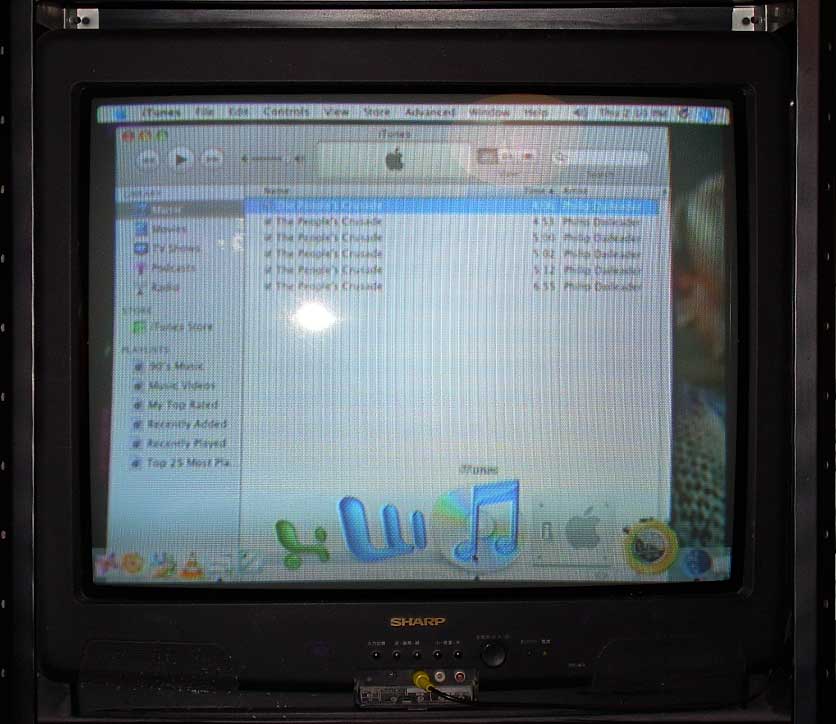
Anyway, one of the biggest Windows rip-offs that I've disliked has been the dock. That is, I disliked it up until I connected my Mini to the T.V. All of a sudden, the dock looks a lot better than the taskbar.

On the computer screen, you can see everything clearly but, on the T.V. screen, it's pretty blurry, or at least it is on my old T.V. Since the dock can be made larger and provides a launching point for all applications, it makes things easier to see on television.


Additionally, one of the most annoying effects of the dock on a computer screen suddenly became useful on T.V. The bulging magnification effect helps a lot on the T.V. screen because you can follow the cursor's progress across the dock much more easily as well as drag files on top of an application's icon with greater ease.

I'm pretty sure Apple didn't have how the screen looked on television in mind when they designed the dock but I'm rather glad to finally find that the dock can beat the taskbar functionally in some cases.